Processing
- General
- Batchtool
- Jobs
- Jupyter Notebooks
- Fibertracking, Streamline Analysis
- Segmentation (Deep Learning)
General
The batchtool was created out of the needs to apply common neuroimaging pipelines (like SPM, FSL, Freesurfer) on medium sized projects (10-1000 subjects) in a convenient and efficient manner. One of the major objective of NORA's batchtool is to deal with heterogenous data. Typically, files (a.k.a. image series, or any other filecontent) are selected by file patterns, which can iteratively generalized. Errors can be easily tracked by a simple error logging system. For example, it is simple to select a errornous subgroup and rerun a modified job for them, which was corrected for the error. Processing pipelines (batches) are a simple linear series of jobs. Depending on the relationship between individual jobs, they can run serially or in parallel.
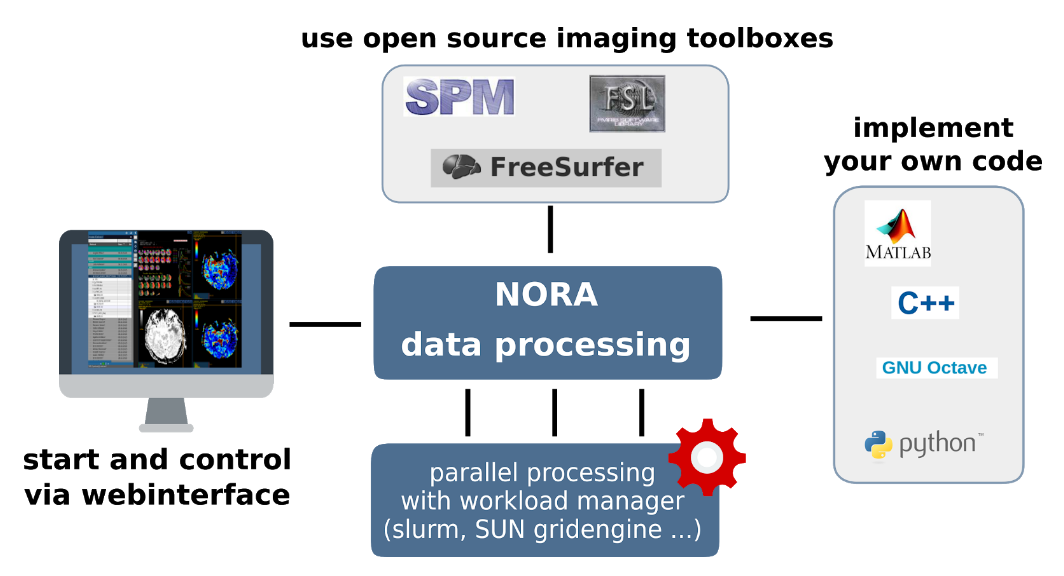
Figure 1: Design principle
In conclusion, what it provides:
- Convenient selection of subject/study sets to apply certain processing pipelines
- Definitions of inputs via Tags or filepatterns with wildcards
- Composition of processing pipelines based on predefined scripts/jobs (mostly MATLAB), or custom MATLAB/BASH/Python code
- Submission of jobs to a cluster (Slurm/SGE) with direct access to logs and errors
Batchtool
The Batchtool Window
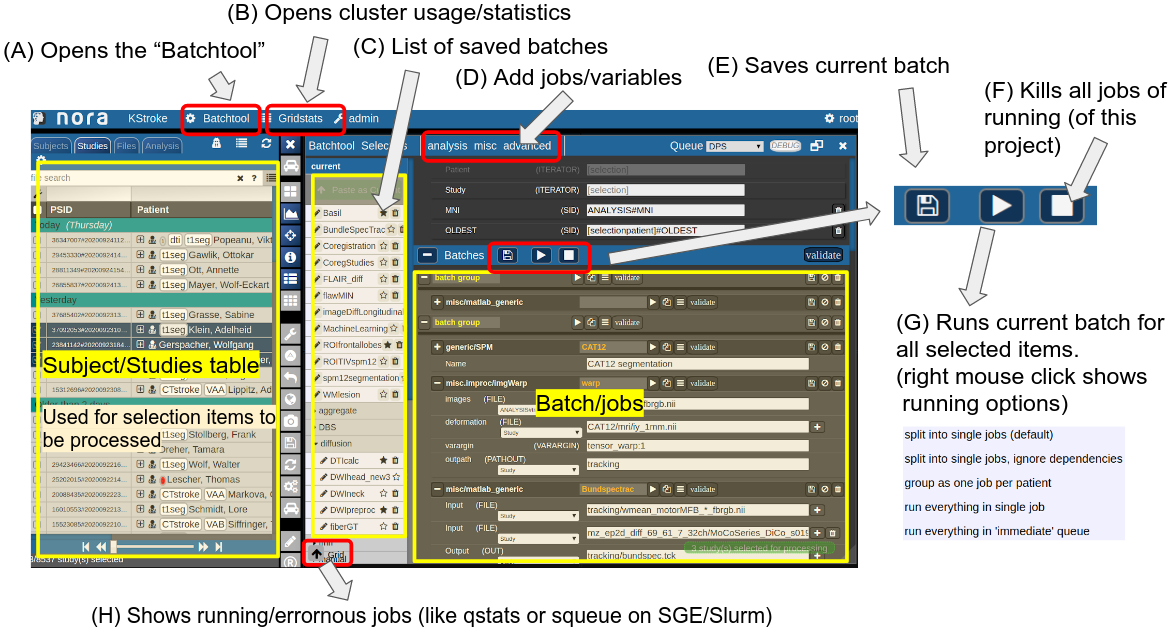
Consider Figure 2 below: the subject/studies table on the left is used for the selection of subject/studies on which you want to run your batch. You can use the filter bars to create the subgroup you want to work on (see Subject/Studies table). Select "Batchtool" on the top toolbar (A) to open the batchtool. Figure 2 shows the structure of the Bacthtool window. It allows to compose the batch out of single jobs. Jobs are added from the menu (D). You can save batches (E), which then appear in the batch list (C). To open an overview of currently running jobs open the "Gridstats" window (B) or (H).
Batches are launched for every subjects/study independently in parallel. The jobs within a batch run sequentially. You can also choose different running option (see (G) in Figure 2). Depending on the selection level (subjects or studies), the batches are iterated over subjects or patients

Imagine a scenario where you have multiple studies per patient, which have to be linked in some sense. Then, the subject level is appropriate. For example, think of a neuroimaging analysis where you a have a CT study (which contains, e.g. electrode information) and a MR study (which contains soft tissue anatomical information), or think of a simple longitudinal analysis. Otherwise, if your your studies should all be treated in an equal manner, the study level is appropriate.
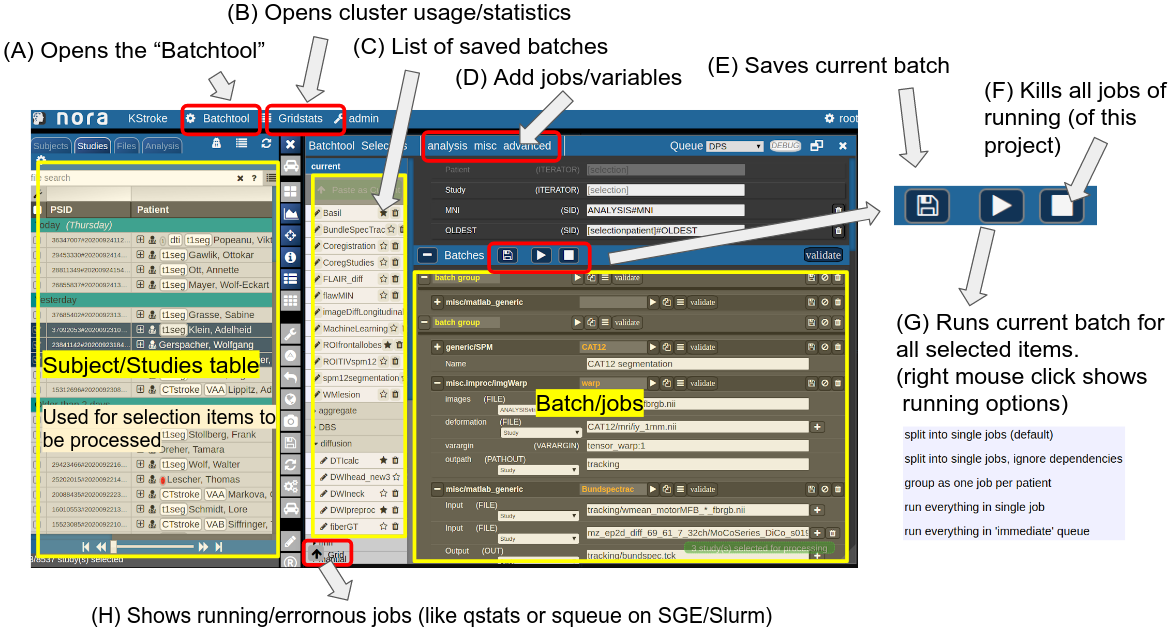 Figure 2: Batchtool overview.
The Anatomy of a Job
A job consists of a list of arguments. There are several types of arguments:
-
FILE
All input images/series (or any other type of files) are given as FILE arguments. Usually you give a file pattern instead of an explicit filename. A fIle pattern is a combination of subfolders, filename and wildcards. For example: t1*/s0__.nii. I refers to all files contained in a folder starting with t1 and whose filename matches "s0___.nii" . The asterisks (*) is a placeholder for an arbitrary character sequence, an underscore "_" for a single character. Internally, the wildcards are the same as for SQL "like" statement (the '*' is replaced by '%'). A FILE argument also includes a reference to a study or patient. Depending on the selection level (subject or study), different "study references" are possible. See below for more about "study references". -
OUT
A name of a file including the subfolder. No wildcards are allowed here. Depending on the selection level there are again different study references possible. A output file may be tagged by putting in the OUT field "myoutputfilename TAG(mytagname)". -
PATHOUT
Same as OUT but refers to foldername instead of a filename. - NUMERIC
- STRING
- LOGICAL
- OPTION
Study References and study selectors
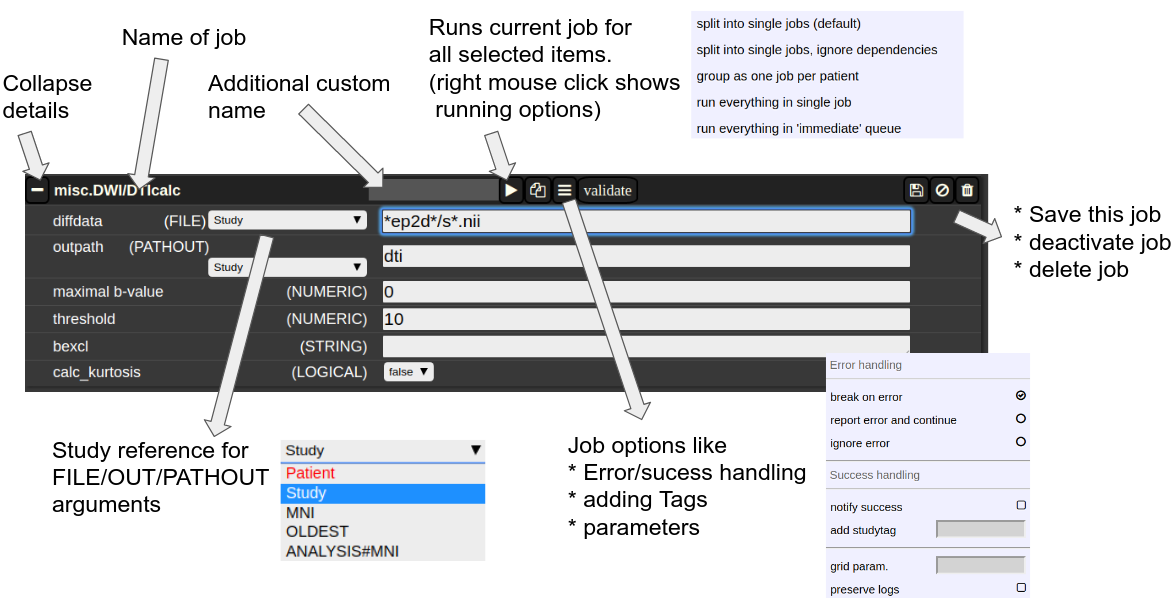
Figure 3: The anatomy of a single job.
Cluster Managment/Monitor (Gridstats)
To monitor the integrated cluster environment there is a simple table based overview, which provides accessto job logs and job modifications. One can also sort and search the current job statistics to selectively monitor or kill/suspend jobs. While finished jobs just disappear by default (you can change this in the settings), jobs that have produced an error are kept for further analysis. Note that the job information is also available on subject/study level (see Figure 2) as small indicators. To get further information about the job, you can click on the function cell and a JSON-representation of the job is displayed. A click on the subject cell selects the corresponding subject/study in the table.
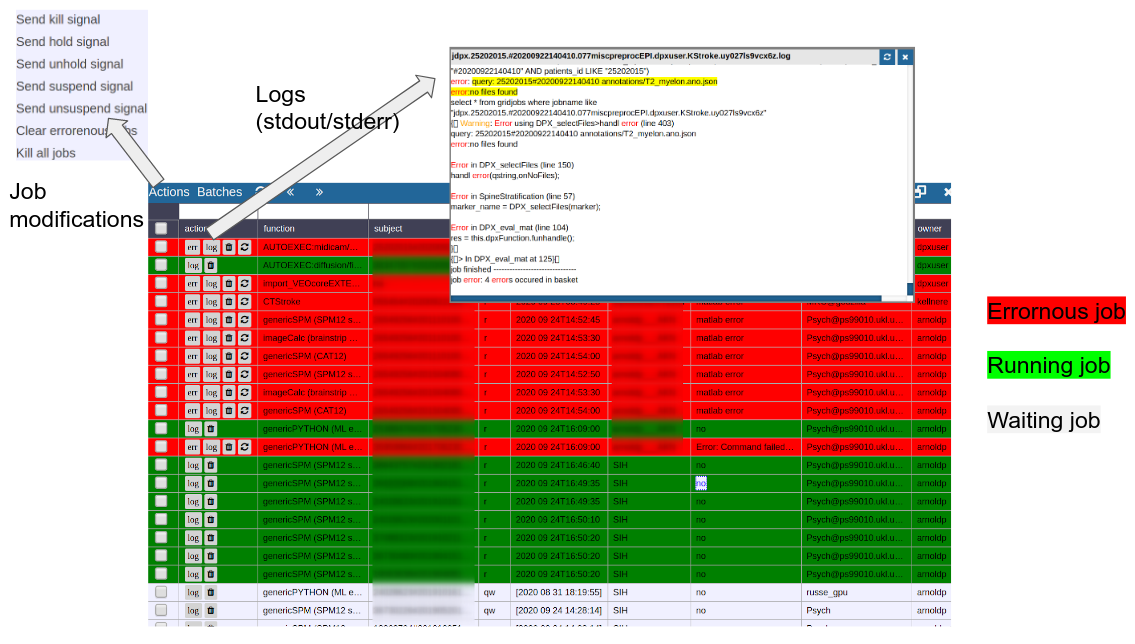
Figure 4: Gridstats: monitoring and control of the cluster environment/resource managment (Slurm/SGE)
Jobs
Generic jobs
There are a multitude of predefined algorithms (mostly MATLAB) in NORA; however you can also implement your own scripts directly by using generic jobs. Currently there are three types of languages possible:
- BASH
- Python
- MATLAB
A generic jobs basically provides a field where you can enter simple expression or a full script in BASH/Python or MATLAB. Arguments from NORA are passed to the script by simple variable naming conventions.
For BASH/Python scripts input files (and all other parameters) are referenced by variables with a $-prefix with a special naming convention. For example, file arguments are referenced by $f1-$f9. Once NORA finds such an expression it automatically adds a corresponding row at the bottom of the job, which can be filled by the appropriate file patterns. The same holds of output arguments (represented by $o1-$o9) and output paths (prefix 'p'). Other parameters (STRING,NUMERIC) are referenced by prefixes 's' and 'n'.
In MATLAB the approach is a little bit different. You can manually add input/output arguments by using the "plus" sign and refer to the arguments by ordinary MATLAB variables. As input you have a series of cell-Arrays (input1, ..., inputN), as output a series of strings (output1, ..., outputN).
The input and output filenames are resolved to absolute paths that may be used directly.
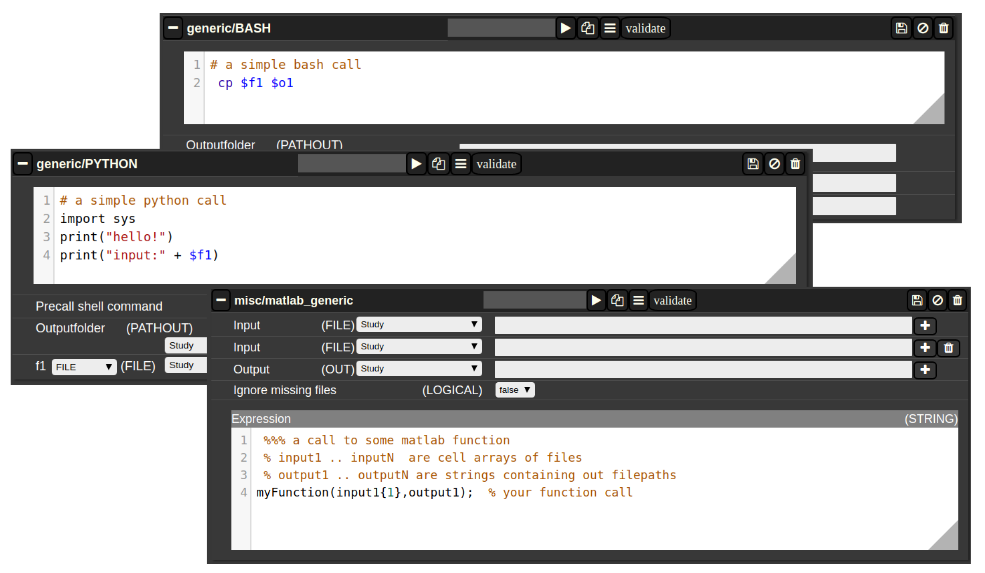
Figure 4: Generic Jobs
The Nora backend and related software is available to the jobs. The backend command is named nora. This allows bash jobs like: nora -a $1 --addtag mytagname. This example adds a tag to a file that was selected for processing, by making use of the backend.
Jupyter Notebooks
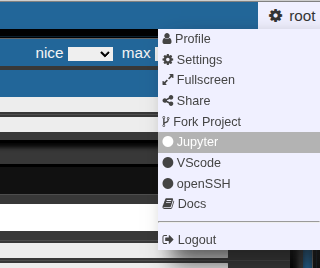
Nora allows to submit cluster jobs which launch jupyter lab. There are several ways:
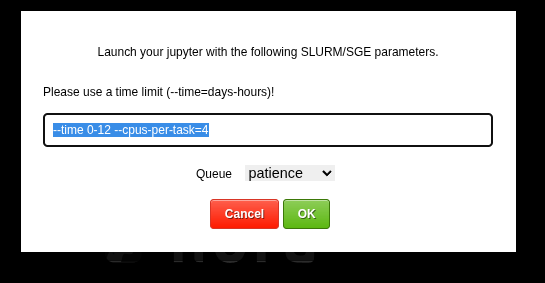
- Go to your right upper corner, and choose jupyter

This allows you to launch a jupyter lab on the cluster. You can choose slurm parameters for the job

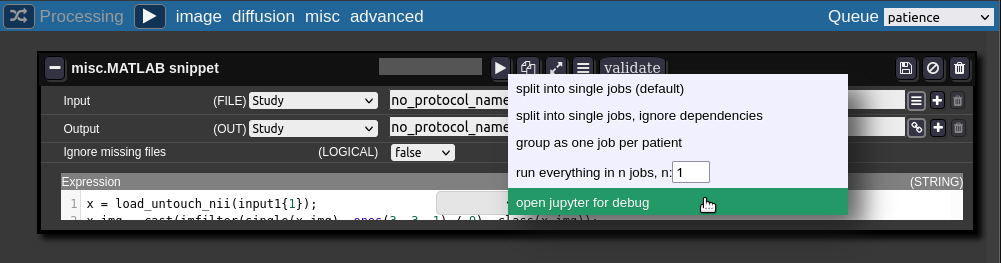
The root folder of the notebook will be located on you persistent home folder on the cluster. - For debugging the batchtool can open a job in a jupyter notebook:
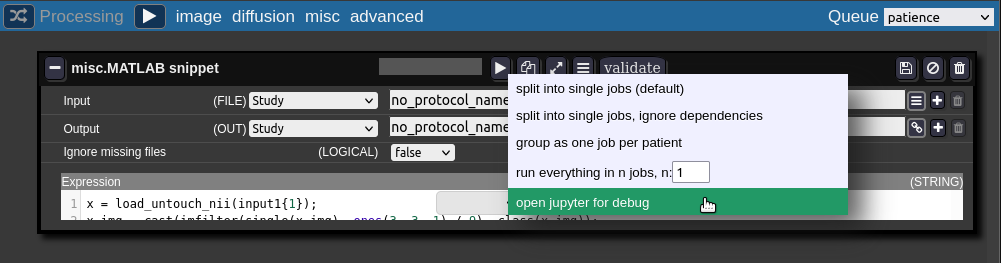
The jupyter notebook is opened in a new browser-tab (make sure your browser allows pop-ups for Nora):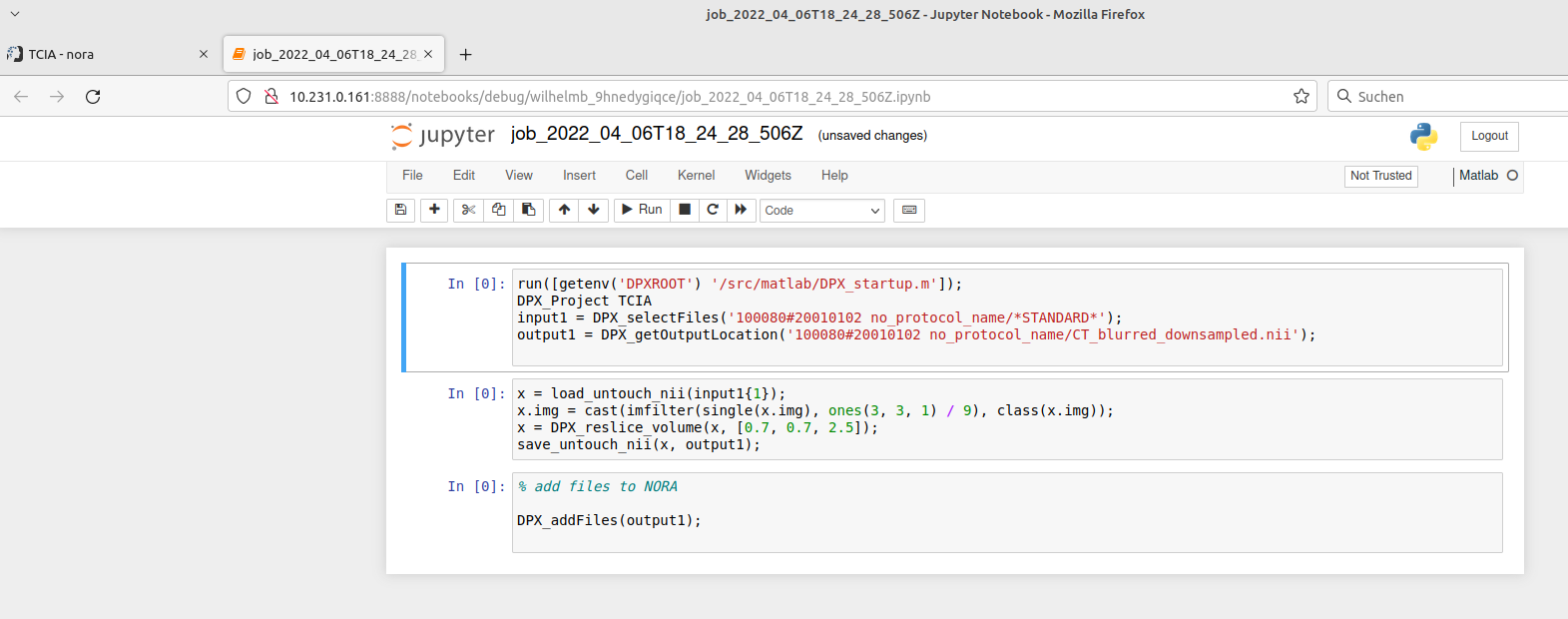
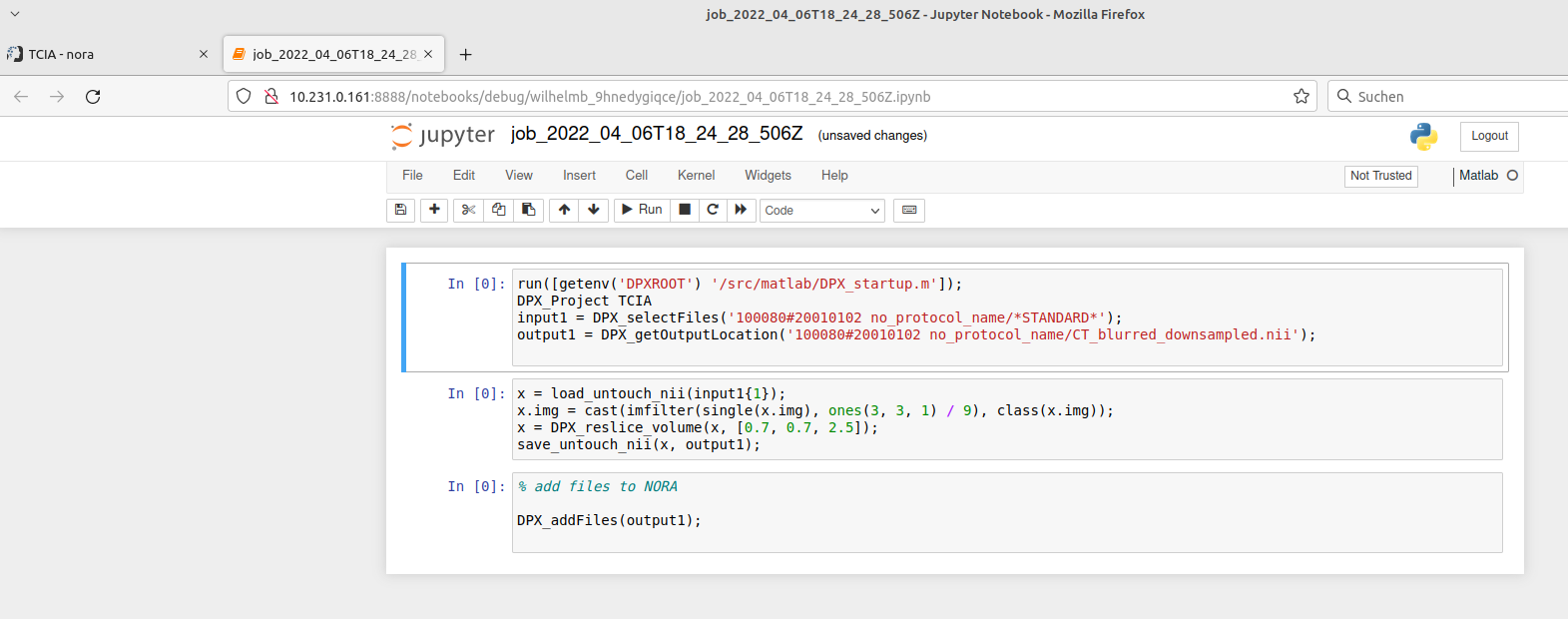
When finished with debugging close the tab. Don't forget to kill the jupyter-notebook job in the grid view. The view may be opened on the bottom of the batch tool.

Fibertracking, Streamline Analysis
Some slide explaining NORA's fiber viewer
Streamline Analysis
thanks to Andrea dressing for the tutorial
Segmentation (Deep Learning)
Training and Using Segmentation Models
The Batchtool allows you to train custom 3D segmentation models on your own data and apply them to new studies.
Here's a short tutorial on how to use the patchwork segmentation model (Deep Neural Patchworks: Coping with Large Segmentation Tasks, Reisert et. al, 2022)
1. Training a Segmentation Model on Your Data
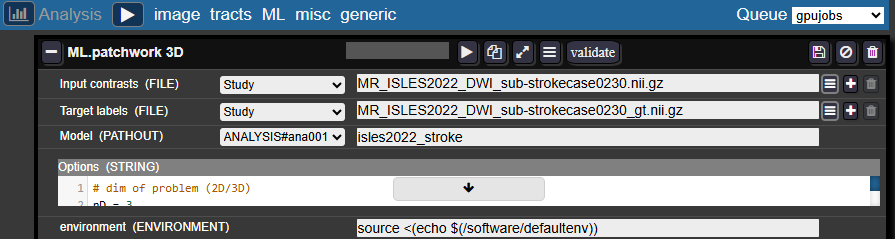
In the Batchtool:
- Create a new Analysis → ML → Patchwork 3D
Entry fields:
- Inputs contrasts and Target labels: Enter the filenames of your images and masks as they appear in each study
- Model: Select an analysis folder (create one in your project if needed) and provide a name for your model folder, for example:
isles2022_stroke
Configuration:
- In the Studies panel, check the studies you want to train the model on
- Select a job queue and run the analysis
- The job should appear in the Gridstats. You can monitor training progress in the log.
Training notes:
- The default number of iterations is 2500
- The model is saved after each epoch, so you can also terminate the job early if performance is satisfactory
2. Applying the Trained Model to New Studies
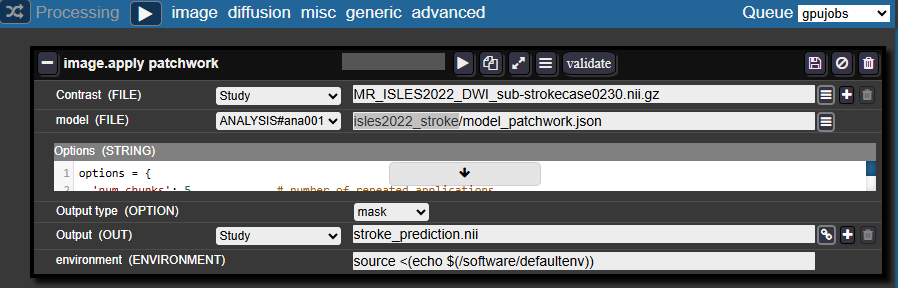
In the Batchtool:
- Create a new Processing → Image → Apply Patchwork
Entry fields:
- Contrast: The filename of your image in your studies
- Model: Select the same analysis folder and specify:
<model_folder_name>/model_patchwork.json- For example:
isles2022_stroke/model_patchwork.json
- For example:
- Output type: Select Mask
- Output: Specify the desired name for the resulting mask
Configuration:
- In the Studies panel, check the studies you want to apply the model to
- Select a job queue and run the processing
- Monitor the job progress through the logs in Gridstats