# Reading Tool
#### Overview
The **Reading Tool** enables structured and controlled reading sessions for medical imaging studies. It is designed for both **individual** and **multi-reader** scenarios — supporting reproducible reading performance measurements, rater comparison, and annotation-based tasks.
Readings can be configured flexibly: randomized, blinded, repeated, or staged, depending on the study design. Results are stored securely and can be reviewed or exported by reading administrators.
#### Use Cases
- **Controlled Reading Studies:** Measure inter- and intra-rater performance, reproducibility, or the impact of AI assistance.
- **Annotation Tasks:** When a single reader annotates or tags cases manually, using the patient table and tag system may be more practical.
- **Training Scenarios:** Allow readers to familiarize themselves with representative cases before entering a serious reading phase
#### Key Features
1\. Forms & Rating
- Create **rating forms or questionnaires** using the form designer.
- Readers fill out these forms during reading sessions.
- Form items can optionally be linked to **tags** in the patient or study table.
2\. Image Interaction
- Draw **annotations**, **points**, or **ROIs** directly on the images.
- Combine with predefined **autoloaders** to automatically load the correct images and view settings.
3\. Reading Modes
- **Individual Mode:** Each rater works independently.
- **Joint Mode:** Multiple raters collaborate on the same session.
- **Blind Modes:** Control what metadata or previous results are visible to the reader.
4\. Randomization & Repetition
- Readings can be randomized per patient, study, or image.
- **Repetitions** are supported to evaluate reproducibility.
- Randomization can be **deterministic** or **fully random**.
- **Staged Readings:** Different stages can present varying image contexts (e.g., raw vs. AI-assisted).
5\. Training vs. Serious Mode
- **Training Mode:** Assign selected cases for practice.
- **Serious Mode:** Conduct the actual study under controlled conditions.
6\. Workflow Control
- Access to the patient table can be **restricted or detached** for fully controlled sessions.
- **Timing** of each reading is automatically tracked.
- Optionally include **reading instructions or external links** (e.g., Google Slides presentations).
#### Data & Results
- All form entries, annotations, and timing data are stored in the NORA database.
- Reading results can be reviewed and exported as **CSV** files by the reading administrator.
### Usage of Reading Tool
Open the reading tool (R) in vertical toolbar [](https://nora-imaging.org/doc/uploads/images/gallery/2025-10/a4cimage.png)
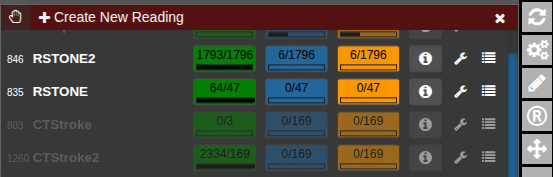
A list of all readings you have permission to access will appear.
[](https://nora-imaging.org/doc/uploads/images/gallery/2025-10/UMgimage.png)
The current progress for each reading is displayed as a numerical indicator showing how many cases have been completed out of the total. To start or continue a reading, click the corresponding button. If available, the **Info** button opens the reading instructions provided for that session. The **Wrench** button allows editing of the reading configuration, while the **List** button displays the collected reading results. To check for newly assigned readings or updates, click **Refresh from Server** to synchronize with the latest data.
#### Configure a reading
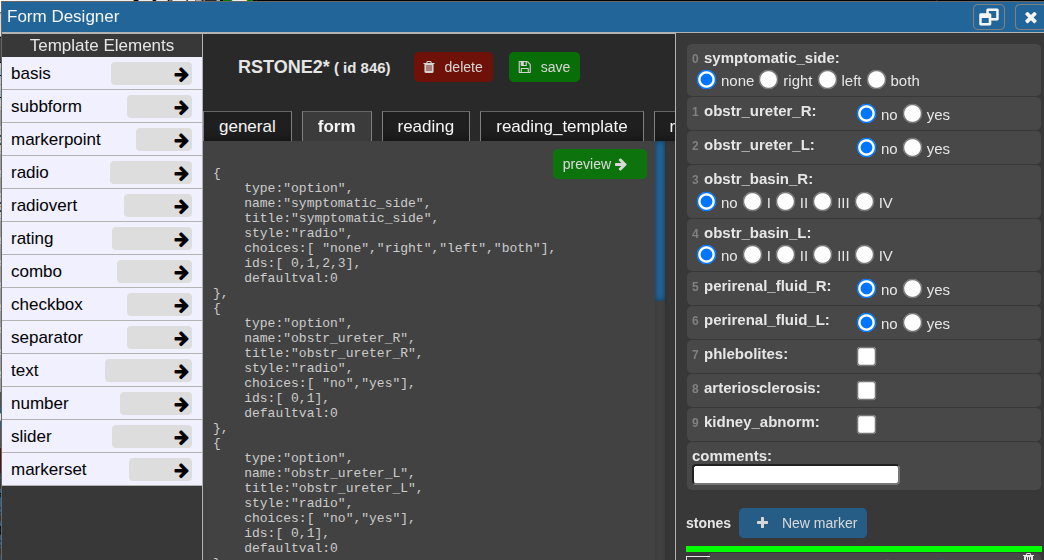
Click **Create New Reading** or the **Wrench** button to edit an existing one. The **Form Designer** will appear.
##### **general** tab
In the **general** tab, basic settings can be set.
##### **form** tab
In the **Form** tab, define the reading form using JSON code.
Click a **template element** on the left to copy its JSON snippet, then paste it with **Ctrl+V** or click the **arrow** to insert it directly at the cursor position.
Use **Preview →** to check the JSON and view the rendered form on the right.
Add the property `"useastag": 1` to radio or checkbox elements if you want them to act as tags in the patient table.
[](https://nora-imaging.org/doc/uploads/images/gallery/2025-10/sdhimage.png)
##### **reading** tab
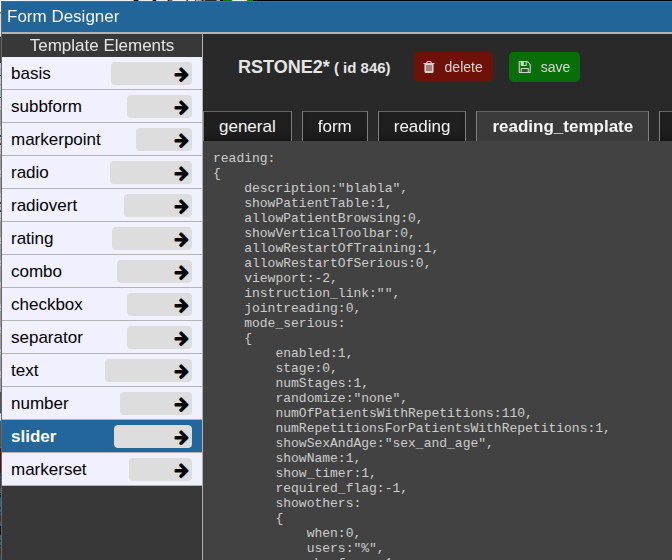
This json contain the reading configuration. It consist of several major variables: **reading, tools,** and **viewer.** Most properties are self-explanatory; additional details for specific options are provided below.
For a new reading, it may be empty. If so, go to the **reading\_template** tab and copy the relevant code to start.
The **reading\_template** contains a template for a basic reading. The **viewer** property always contains the current viewer settings including the autoloaders.
So if you want to change the autoloader / viewer settings, you can modify your current view accordingly, go to reading\_template, at copy only the viewer portion or the relevant parts of it.
[](https://nora-imaging.org/doc/uploads/images/gallery/2025-10/Qmlimage.png)
##### Training and serious mode
The properties **mode\_serious** and **mode\_training** define the respective configurations for these two stages.
Typically, training cases are marked with a study tag such as `"training"` and selected using an SQL condition like:
`SQLCondition: "STAG LIKE '%Training%'"`.
This allows readers to practice on predefined cases before proceeding to the serious reading phase.
##### Randomization
##### Important Notes
Always test a complete reading run first — ideally on a small subset of cases defined through the **SQLCondition** — to ensure that all settings and logic work as intended.
After the test, review the **results table** to verify that data is stored and displayed correctly.
Before starting the official reading and involving other readers, it is strongly recommended to consult with the **system administrators** to confirm that the setup is correct and stable, avoiding wasted time and effort.