
Segmentation (Deep Learning)
Training and Using Segmentation Models
AThe smallBatchtool overviewallows you to train custom 3D segmentation models on your own data and apply them to new studies.
Here's a short tutorial on how to use the patchwork segmentation model (Deep Neural Patchworks: Coping with Large Segmentation modelsTasks, Reisert et. al, 2022)
1. Training a Segmentation Model on Your Data
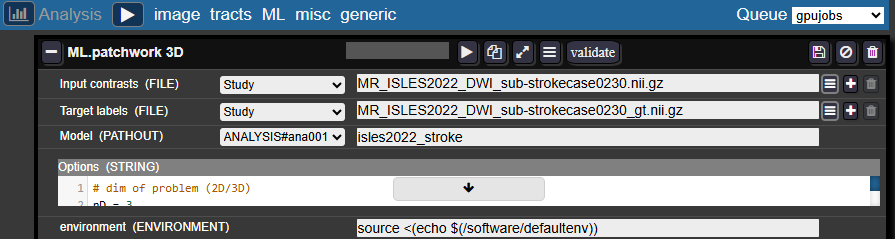
In the Batchtool:
- Create a new Analysis → ML → Patchwork 3D
Entry fields:
- Inputs contrasts and Target labels: Enter the filenames of your images and masks as they appear in
NORAeach study - Model: Select an analysis folder (create one in your project if needed) and provide a name for your model folder, for example:
isles2022_stroke
Configuration:
- In the Studies panel, check the studies you want to train the model on
- Select a job queue and run the analysis
- The job should appear in the Gridstats. You can monitor training progress in the log.
Training notes:
- The default number of iterations is 2500
- The model is saved after each epoch, so you can also terminate the job early if performance is satisfactory
2. Applying the Trained Model to New Studies
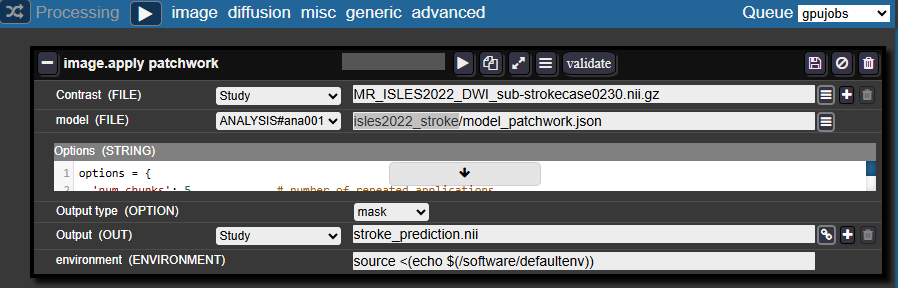
In the Batchtool:
- Create a new Processing → Image → Apply Patchwork
Entry fields:
- Contrast: The filename of your image in your studies
- Model: Select the same analysis folder and specify:
<model_folder_name>/model_patchwork.json- For example:
isles2022_stroke/model_patchwork.json
- For example:
- Output type: Select Mask
- Output: Specify the desired name for the resulting mask
Configuration:
- In the Studies panel, check the studies you want to apply the model to
- Select a job queue and run the processing
- Monitor the job progress through the logs in Gridstats